

Scroll at the top edge
Put the pointer against the top of the screen and scroll down. Scroll up there to close it.
 Buckets
Coming soon
For Mac
Buckets is a panel that drops down from your Mac's menu bar. It holds your clipboard history, a shelf of files, notes, reminders, and a bucket for each project you are working on.
macOS 14 or later, on Apple silicon and Intel Macs.
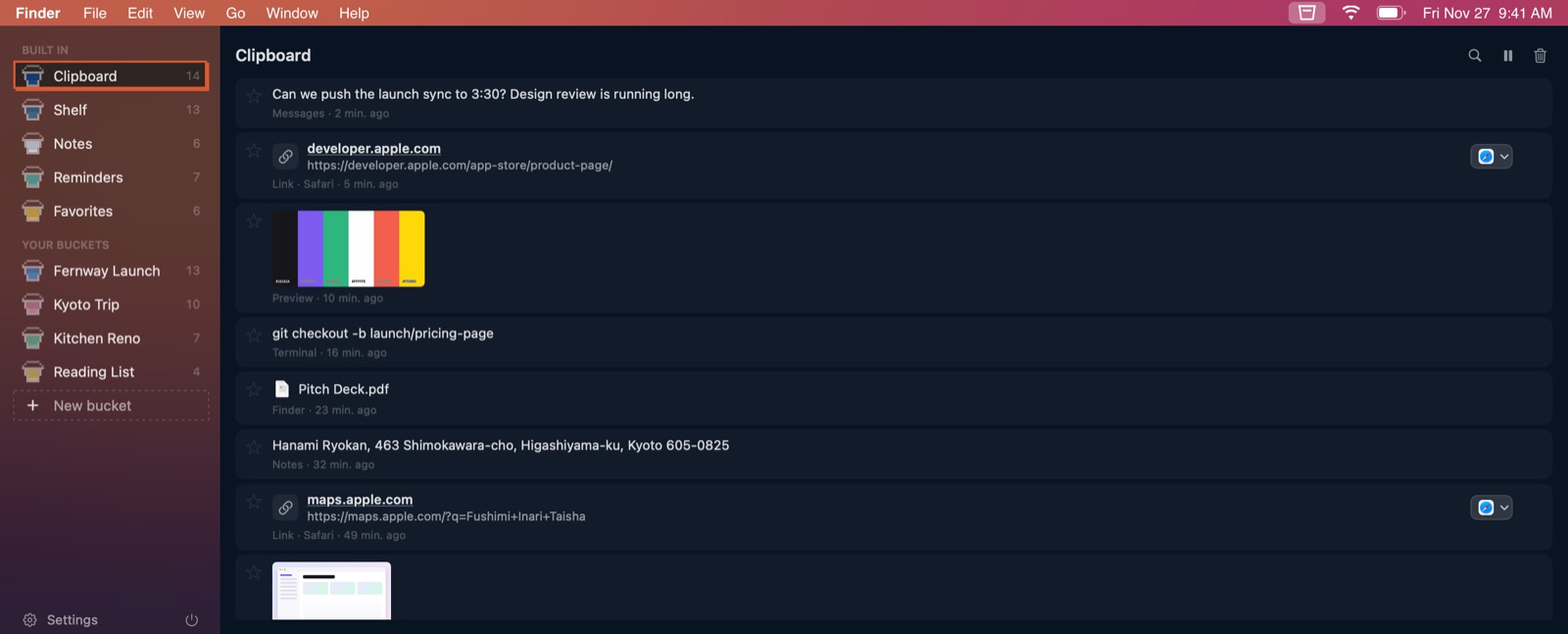
A rail down the left holds the built-in buckets and the ones you make. The bucket you pick fills the rest of the panel.
Buckets lives in the menu bar and has no Dock icon. It comes down when you ask and goes away when you click anywhere else.
Put the pointer against the top of the screen and scroll down. Scroll up there to close it.
Hold a file against the notch for a moment, from Finder or a Dock stack, and the panel drops to catch it.
Option-B, or any combination you record in Settings.
Right-click it for the menu. You can hide the icon, too.
Everything you copy. Click an entry to copy it again. Copied web addresses become links you can open in the browser of your choice.
A small Finder over a folder you choose. Drop files in, drag them out, make folders, and select the way you do in Finder.
Rich text with the Mac shortcuts you already know and no toolbar. Pinch in to see every note as a card.
A checklist that reads times out of plain words and sends a notification with Mark as Done and Snooze buttons.
Anything you star, from any bucket, in the order you drag it into. Starred clips never age out of the history.
One for each project, trip or class, with its own name and colour. Notes, links, text, images, files and reminders, together.
Type a task the way you would say it. The time is picked out, shown as a chip before you add it, and left out of the title. "Remind me to" and "don't forget to" are dropped as well.
Try it here. This is a small sketch of the idea, running in your browser; the app understands more. A day with no time means 9 AM, and a time that has already passed today means tomorrow.
Your buckets are ordinary folders on your Mac, one per bucket. Buckets keeps no other copy and watches them, so anything you add, rename or delete in Finder shows up straight away. A folder you make there becomes a new bucket.
If you stop using Buckets, your things are still right there, in folders.
| File | Shows as | Click to |
|---|---|---|
| Packing list.rtf | Note | Edit it beside the list |
| Address.txt | Text snippet | Copy its text |
| Torii at sunset.png | Image | Copy the image |
| Ryokan Booking.pdf | File | Open it |
Your clipboard history, notes, reminders and buckets are stored on your Mac. There is no account, no analytics, and no server of ours for any of it to travel to.
Copies that password managers mark as concealed are never saved. You can clear the history whenever you like, and have Buckets empty the clipboard too.
Read Buckets' privacy policy
Buckets has been submitted and is waiting for its turn. This page will link to it as soon as it is live.
Coming soon to the Mac App Store